Welcome to the Training for Beacon Oral Surgery
YEALINK T54W Desk Phone Video Tutorial

Price Telecommunications Video Tutorial for the YEALINK T54W Desk Phone
Video Tutorial Transcript for the YEALINK T54W Desk Phone by Cooper with Price Telecommunications
Hi. I’m Cooper with Price Telecommunications. Thank you for joining me for this Beacon Oral Surgery training session. In this tutorial, I’ll be guiding you through the YEALINK T54W desk phone, as well as how to use some of its basic features. You’ll see timestamps on the screen.
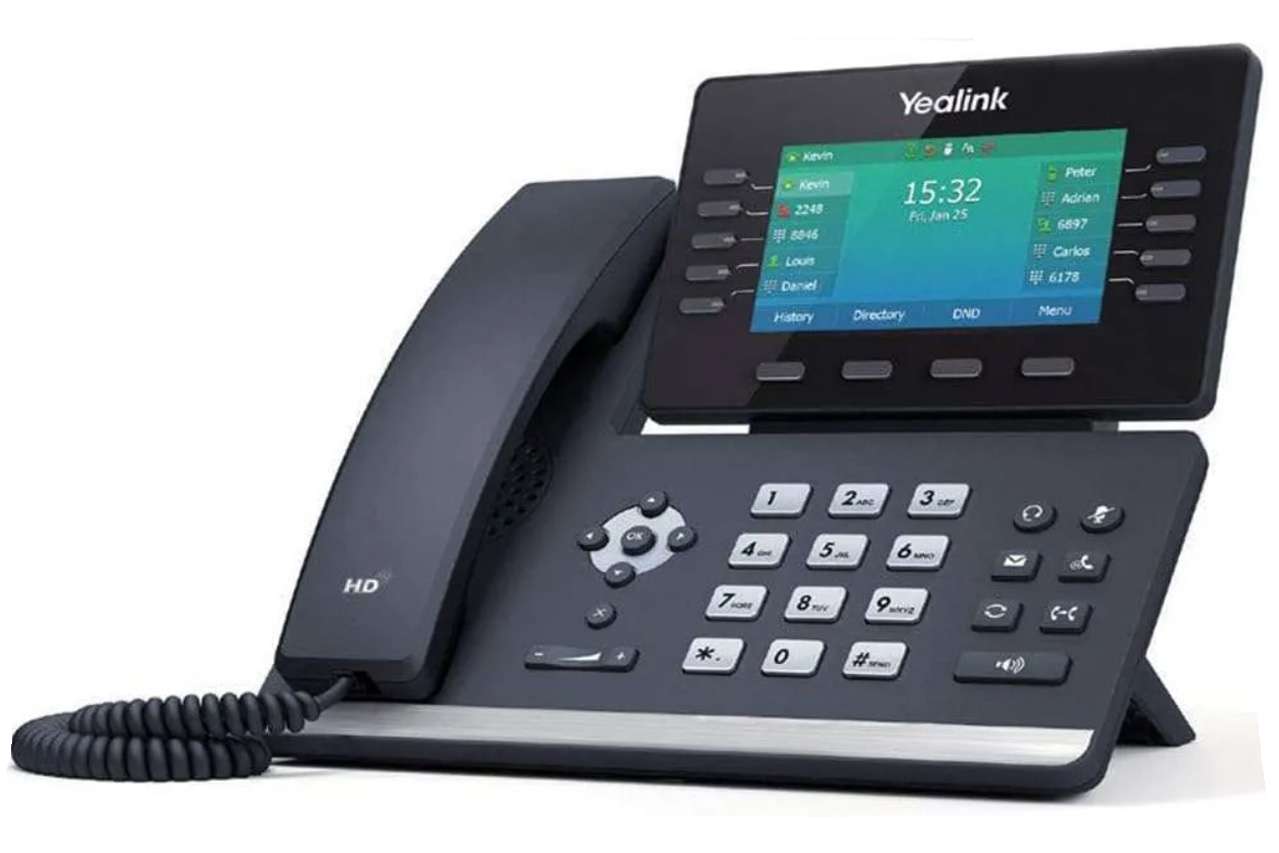
Now, in case you need to jump ahead or go back at any point, let’s first take a look at the physical buttons. On this device, we have 10 line keys, and seven feature keys, including Headset Enable and Disable, Mute- which illuminates when activated, Messages, Hold, Redial, and Transfer.
Beneath those, you’ll see speakerphone four soft keys, six navigation keys, and the volume control switch. Next, we can shift our attention to the screen itself.
To begin with, this area in the corner of the screen is the label, and we’ll typically display your device’s extension. Moving down to line one, you will see the extension assigned to your device.
In this case, Extension 104. Beneath that is our voicemail speed dial. To check your voicemail, simply press the voicemail key, wait for the prompt and enter your four digit passcode. In line six, we have park one, which is where we park our calls. Across the bottom of the screen, you will see several basic options that change depending on which screen. We are using History, which displays our call history directory, which displays any saved contacts on your device, DND or Do Not disturb, which we highly advise you not to activate, and the menu key. Making and receiving calls on the T 54 W is very straightforward. To make an outbound call, you have several options. You may either press the speakerphone button and dial your number, pick up the handset and dial your number, or even just dial the number without doing anything else.
You may also use the Call Button, but the call will dial automatically after just a moment. When you receive a call, you’ll notice that you have several more options, Answer, Forward, Silence, and Reject.
In addition to the onscreen Answer button, you can simply pick up the handset or press the speakerphone button to answer and begin a call. While on a call, you’ll notice four new options across the bottom of the screen: Transfer, Hold-which is illustrated by a pause icon and a resume button, Conference, and End Call.
Lastly, we will walk through how to transfer calls on this device. For transferring calls within the office, we recommend placing them on Park by selecting Park 1. Placing a call on Park is similar to placing them on Hold. However, when we place a call on Park, it can be answered by any other phone in the office.
For calls needing to be transferred externally or to a specific extension, you can once again select transfer and enter the phone number or extension of the destination.
Once again, thank you for joining us today for the Beacon Oral Surgery Training session. If you have any additional questions, please feel free to reach out to us by phone or email at any time, as we’re always happy to help. Thanks for watching, and have a great day.
Phone: 770-977-9999
Email: Support@pricetel.com
VONAGE Business Center Desktop APP and Main Features Video Tutorial

Price Telecommunications VONAGE Business Center Desktop APP - Setup & Main Features - Video Tutorial
Cooper with Price Telecommunications VONAGE Business Center Desktop APP Video Tutorial
Hi, I’m Cooper with Price Telecommunications. Thank you for joining us for this Beacon Oral surgery training session. In this tutorial, I’ll be guiding you through setting up the Vonage Business Center desktop app, as well as using some of its main features. You’ll find timestamps on screen now in case you need to jump ahead or go back at any point.
To begin with, let’s walk through how to download and sign into the VBC desktop app. You may have already been prompted to download the app when you logged into the web portal, but if not, you can open your browser and search for VBC desktop app and then select this highlighted link. Next, we will select see downloads. Now select which operating system your computer is running, either Mac, OS, or Windows. In my case, I’m using Mac, but the steps will be very similar to Windows.
Once you select your OS, the download should begin immediately. Once that’s finished, we will double click to run the installer on Mac. We now click and drag the app icon into the applications folder. On Windows. You can follow the similar installer prompts as we first launch into the VBC desktop app. We need to ensure it has all needed permissions and then select login.
This will open your web browser where you can log in with your standard Vonage credentials. After logging in, you will be prompted to open or move back into the Vonage VBC desktop app. After a few moments, the app will refresh and we are all set.
Now that we’re set up in the app, we’re ready to make our first call. To do this, we can either select the Dialpad icon at the bottom of the screen or select New in the top left corner, which will give us some options. In this case, we’ll select New Call, which opens a dial pad where we can either use our mouse or keyboard to input numbers.
If we select the Phonebook Icon, we can view all of our company contacts. For this demonstration, I’ll dial the PriceTel number and select dial. This launches the call window and gives us a list of options across the bottom, like Video Enable or Disable, Mute, Show, Keypad-for entering extensions, Add Call, Transfer, Hold, and End.
When we receive a call, a window will pop up accompanied by this ringtone that displays the caller information as well as the options to either End the call, Answer and place on Hold, Answer, or Mute & Minimize.
Now to check our voicemails, we can select voicemail on the menu bar. This will bring us to the general voicemail view. Notice that we can select the ALL dropdown to specify which voicemail group we are trying to check. When we look at a voicemail, we are presented with several options. Either Call Back, Send Message, Video Call, or More (ellipsis)-which allows us to add them as a Contact, Delete, or Block them.
In the middle of the screen, you’ll see the Start and Stop button for voicemail playback, as well as an additional Download button.
Lastly, for users with faxing enabled, we will cover how to send and receive faxes from the home screen, select the My Apps dropdown, then select Fax. This brings us to the main faxing page where we can view our Inbound and Outbound Faxes. Across the top menu bar, we can select between Recent Faxes, Pending, Failed, and most importantly, Unread.
Once we have selected our fax, we have several more options. Reply, Forward, Download and More (ellipsis). After receiving a fax, there are several key data fields to be aware of. The phone number as this is the client’s fax number, the fax status, and the receiving VFM, which is important for users assigned to multiple locations.
To send a fax, we can either select New in the top, left or right corner. This opens a new window where we can select which VFM we are sending from. If we are assigned to multiple locations below, we can either select an existing contact or input our destination fax number.
After selecting Next, we can now choose if we need a cover page and then select our document for faxing, select Preview and verify the document one last time, and once you’re ready, select Send.
Once again, thank you for joining us today for the Beacon Oral Surgery Training session. If you have any additional questions, please feel free to reach out to us by phone or email at any time as we’re always happy to help. Thanks for watching and have a great day.
Phone: 770-977-9999
Email: Support@pricetel.com